
Introduction to basic features to help you log your schedule.
Types of event
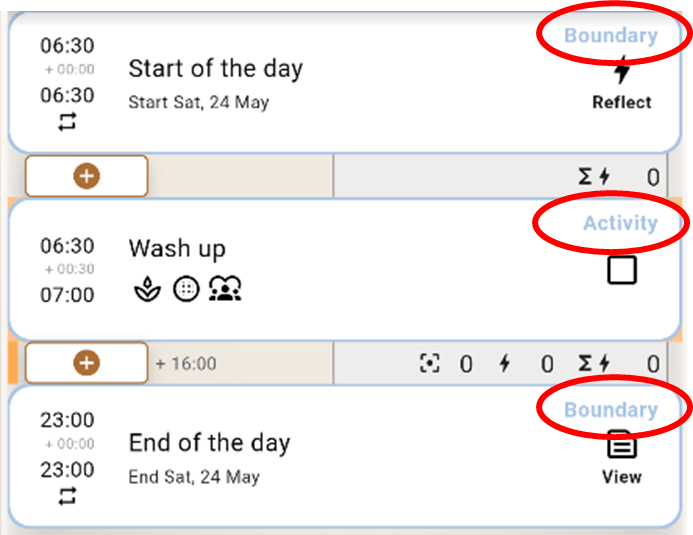
The top-right corner of each event card indicates its type of event.
| Boundary | Activity | |
| Can be Added | ❌ | ✔️ |
| Can be Edited | ✔️ | ✔️ |
| Can be Deleted | ❌ | ✔️ |
Adding an event
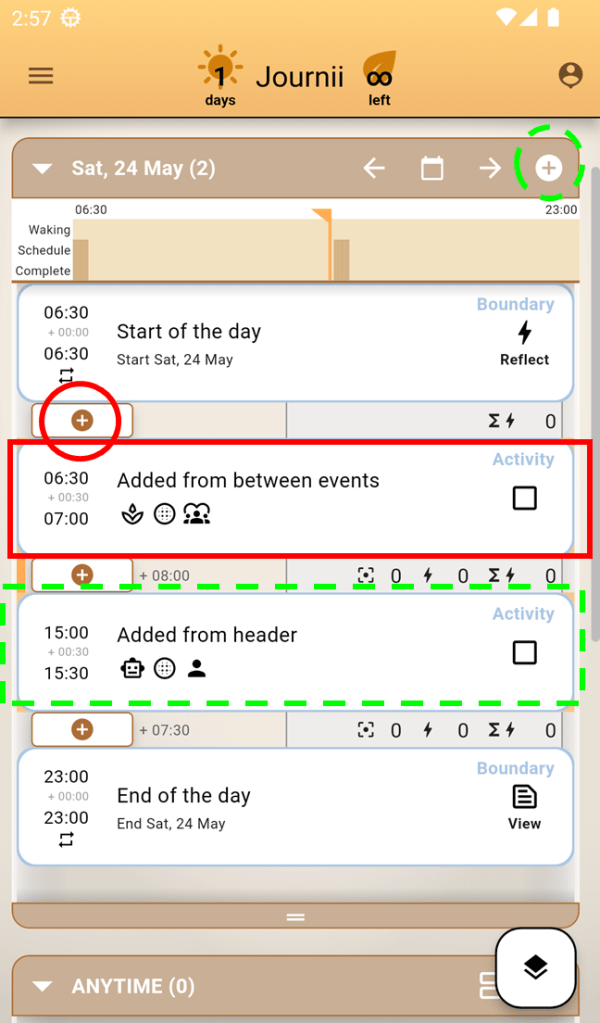
To add an Activity that starts after the prior event in your schedule, tap ➕ between the events.
To add an Activity that starts at current time in your schedule, tap ➕ on the header.
Editing an event
To edit an event, tap on an event card to enter the Edit Event mode.
To save changes, tap ✔️ on the app bar.
To discard changes, tap 🔙 on the app bar.
If you’re unsure of the definition involved in the Predictions tab, please reach out to your Co-Scheduling Buddy for clarifications.
Deleting an event
Swipe an Activity card to the right and tap on 🗑️ to delete that event.
Reminder that Boundary cards cannot be deleted because they constrains the day.
Actions on Activity events
On Activity cards, tap 🟩 to mark event as completed, and you will automatically enter Edit Event mode to reflect on your experience when doing that activity.
If you wish to mark event as incomplete again, simply, tap ✅ at the same location of the card, once more.
If you’re unsure of the definition involved in the Reflections tab, please reach out to your Co-Scheduling Buddy for clarifications.
Actions on Boundary events
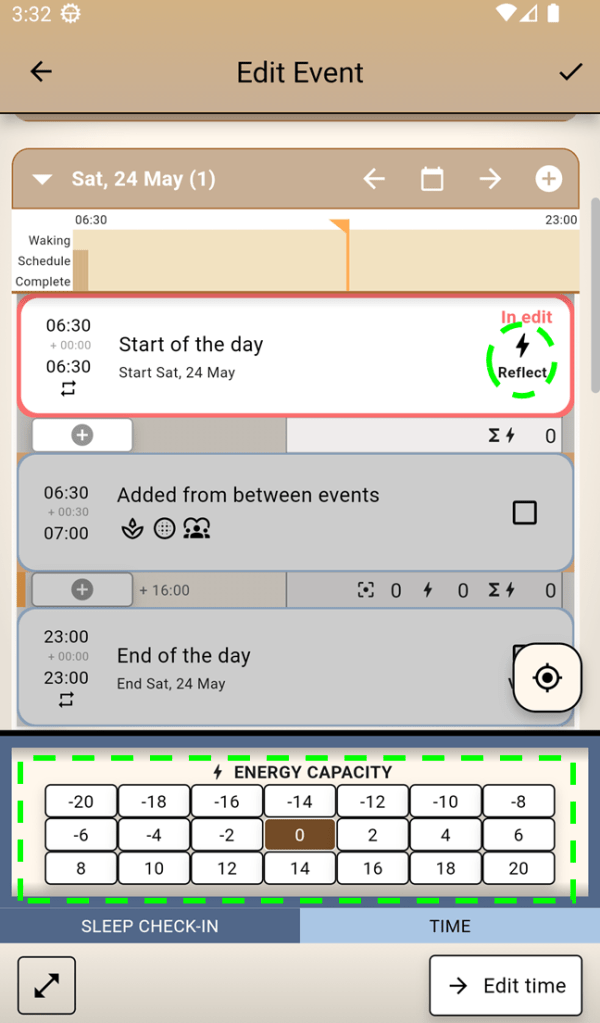
On “Start of the Day” card, tap ⚡ to log your energy level upon waking up from your sleep.
You will see ⚠️ instead of ⚡ if this is not the first event.
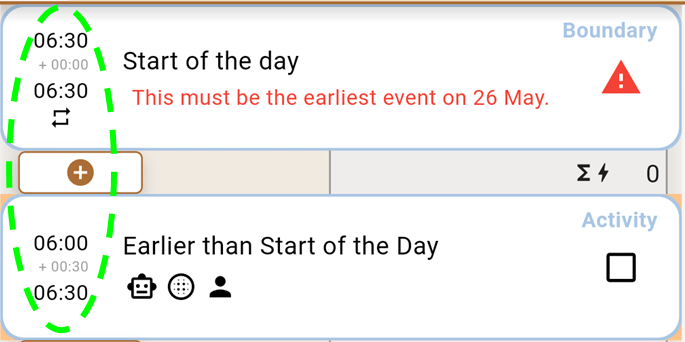
To resolve that error, edit it to the earliest timeslot.
On “End of the Day” card, tap 🗒️ to review the summary of your day.
Tap anywhere outside the Summary to exit view.
You will see ⚠️ instead of 🗒️ if this is not the last event.
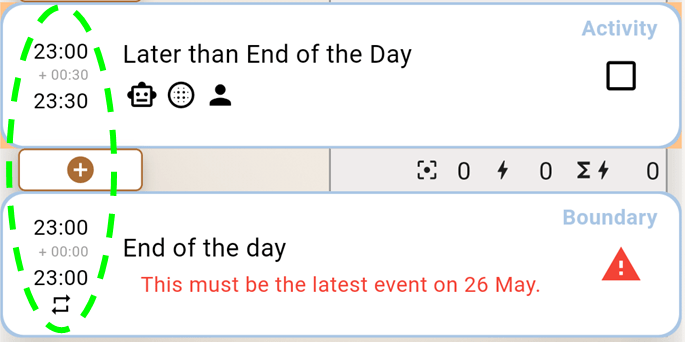
To resolve that error, edit it to the latest timeslot.
Accepting a Suggested event
Suggestions can be browsed and accepted in the Tap to Add mode. To enter that mode, tap the floating 🔷 and then 👁️ Suggestions to show Suggestion cards.
In a Suggestion card, there may be multiple options of Suggested Activity.
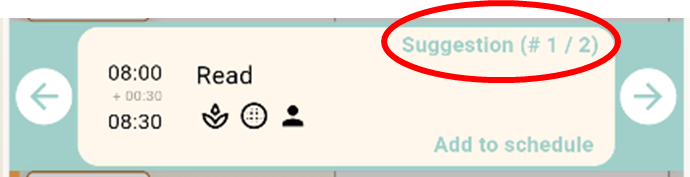
In this mode, the Suggestion cards are only shown temporarily, NOT permanently, on your schedule.
To accept a Suggestion, switch to the Suggested Activity of your choice and tap on it. It will be converted into an Activity on your schedule and you will automatically enter the Event Edit mode to edit it.
After you’ve saved your changes, you will be automatically returned to Tap to Add mode. Note that the accepted Suggested Activity no longer appear as your Suggestion for that day.
To exit from Tap to Add mode, either tap 🔙 on the app bar, or tap 👁️ Suggestions again to hide the Suggestion cards.
Importing suggestions JSON
You will only need this feature if you are participating in our Co-Scheduling Program.
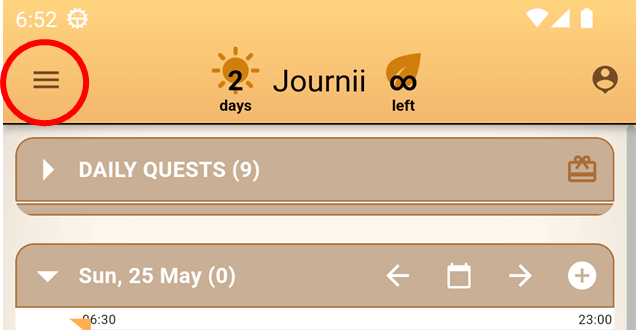
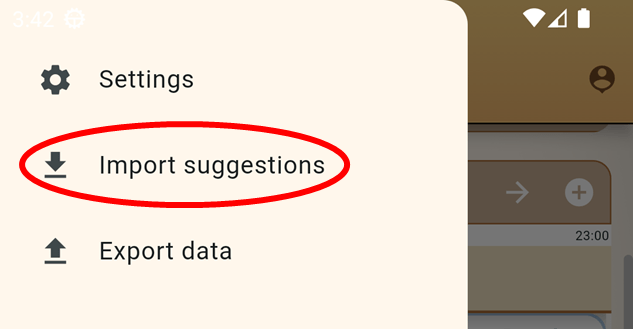
To get to the Import suggestions page, tap ≡ , and then Import suggestions.
If you’re unsure of where your JSON file is located, please reach out to your Co-Scheduling Buddy for clarifications.
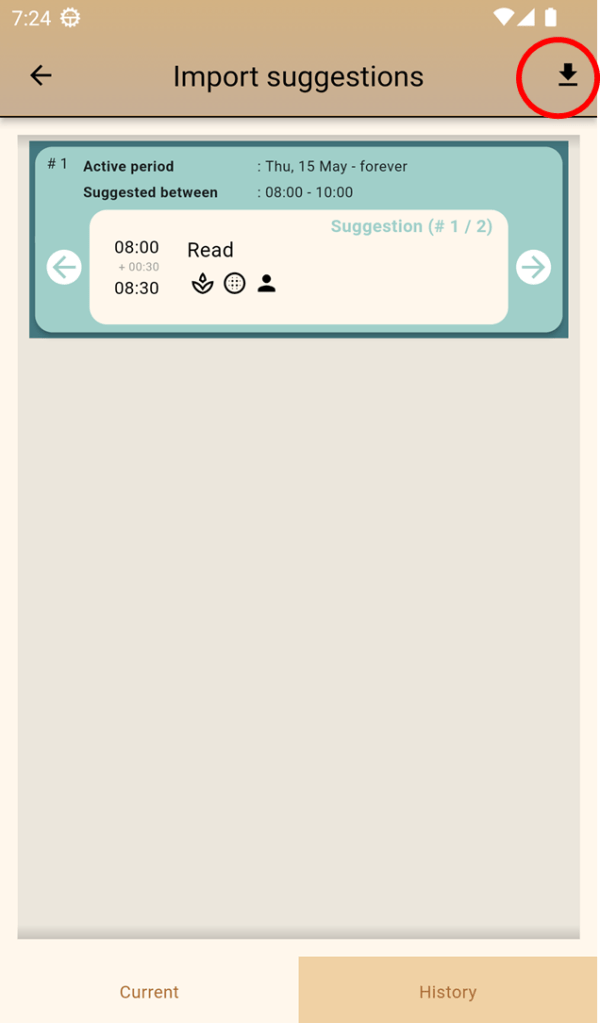
To import Suggestions, tap ⬇️ on the app bar to browse for the JSON file that you want to import.
Once the import is successful, the old Suggestions will be migrated to the History tab and the newly imported ones will appear in the Current tab.
These Suggestions will be temporarily visible on your schedule in Tap to Add mode.
Exporting schedule logs
You will only need this feature if you are participating in our Co-Scheduling Program.
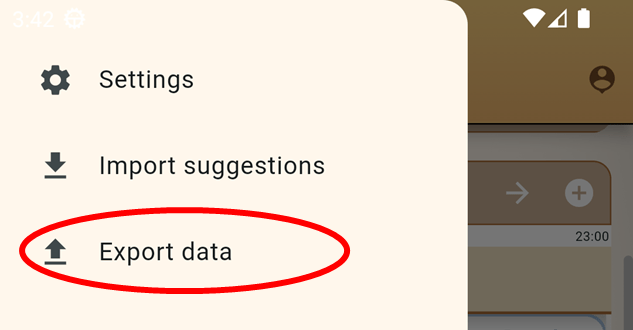
To get to the Export data page, tap ≡ , and then Export data.
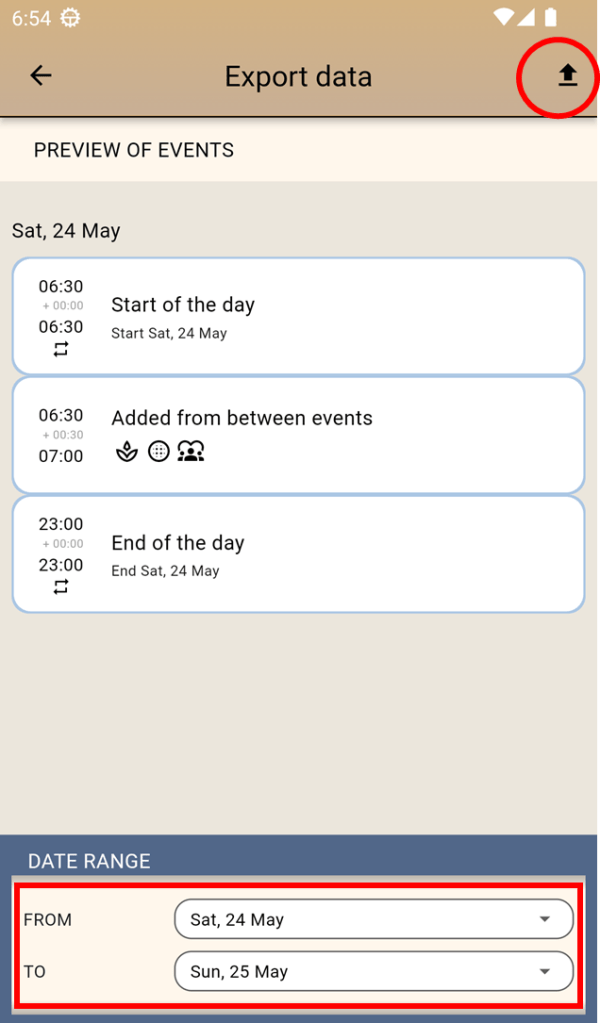
Select the date range of your schedule that you intend to export, which is between your last Co-Scheduling session and your upcoming Co-Scheduling session.
To export your schedules, tap ⬆️ on the app bar to export your schedules to the designated file location.
If you’re unsure of the file location, please reach out to your Co-Scheduling Buddy for clarifications.
 Versilient